
Musikalis Guides
Vocal Remover Guide
Learn how to use the Musikalis Vocal Remover to separate vocals and instrumentals for remixing, karaoke, practice, edits, and stem-based workflows.
Use the surrounding toolset to refine outputs after the first generation instead of treating the song as finished.
The Vocal Remover separates vocals from instrumental audio. It is useful for karaoke, remixing, practice tracks, content edits, and cleaning up source material before a new creative workflow.
Quick answer
Upload an audio file to the Vocal Remover, let Musikalis separate the vocals and instrumental, preview the results, then download the stem you need.
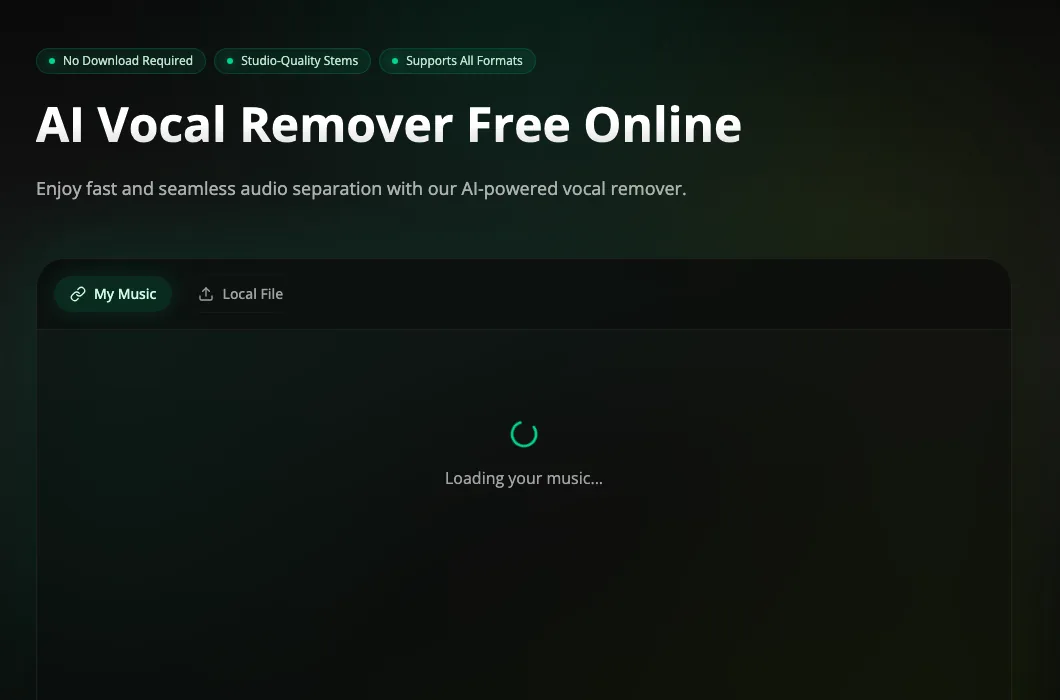
The vocal remover starts from a dedicated separation workspace, with a source selector at the top and the stem output area directly below it.
When to use a vocal remover
| Goal | What to export |
|---|---|
| Karaoke version | Instrumental stem |
| Acapella remix | Vocal stem |
| Singing practice | Instrumental stem |
| Beat remake | Instrumental stem |
| Voice cleanup | Vocal stem |
| Content editing | Either stem, depending on the scene |
If you want to create a new song from scratch, use the AI Music Generator instead.
Step 1: Choose a good source file
Better source audio usually creates better separated stems.
Use:
- Clear MP3, WAV, or high-quality audio.
- Minimal background noise.
- A complete track instead of a low-quality screen recording.
- Audio without heavy distortion or clipping.
Avoid:
- Very noisy live recordings.
- Low-bitrate files.
- Audio with strong crowd noise.
- Files with multiple overlapping voices and effects.
Step 2: Upload and separate
Open the Vocal Remover, upload your file, and start separation. The tool processes the song and returns vocal and instrumental outputs.
After processing, listen to both stems:
- The vocal stem should focus on the singer or voice.
- The instrumental stem should remove most lead vocal content.
- Some artifacts are normal, especially with dense mixes.
Step 3: Use the stems
Common workflows:
Karaoke
Download the instrumental stem and use it as a backing track.
Remix
Download the vocal stem, then create a new instrumental with the AI Music Generator or AI Beat Maker.
Practice
Use the instrumental stem for singing or instrument practice.
Content editing
Use separated stems to reduce distracting vocals or isolate voice content for a video.
How to improve separation quality
- Start with the cleanest source file available.
- Avoid tracks with extreme reverb.
- Do not upload audio that is already heavily compressed.
- Try a different source version if the first output has too many artifacts.
- Use short test sections before processing large files.
Vocal remover vs stem splitter
People often search for "vocal remover", "stem splitter", "vocal extractor", or "instrumental remover". These terms overlap, but the goal is usually the same: separate the mixed song into usable parts.
Musikalis focuses on the practical workflow: upload audio, separate stems, preview, and export.
Common mistakes
- Expecting perfect studio stems from a noisy source.
- Uploading a distorted recording.
- Using separated stems without checking rights for the original song.
- Confusing vocal removal with full AI song generation.
- Not previewing both outputs before downloading.
Next steps
- Open the Vocal Remover.
- Create new background music with the AI Music Generator.
- Write new lyrics with the AI Lyrics Generator.